> For the complete documentation index, see [llms.txt](https://docs.elitebundleapp.com/llms.txt). Markdown versions of documentation pages are available by appending `.md` to page URLs; this page is available as [Markdown](https://docs.elitebundleapp.com/get-started/settings.md).
# App settings
Configure Elite Bundle Builder settings: setup status, checkout compatibility, the bundle discount, developer SDK access and support.
The settings page shows whether the services bundles depend on are set up, and holds the store-wide options.
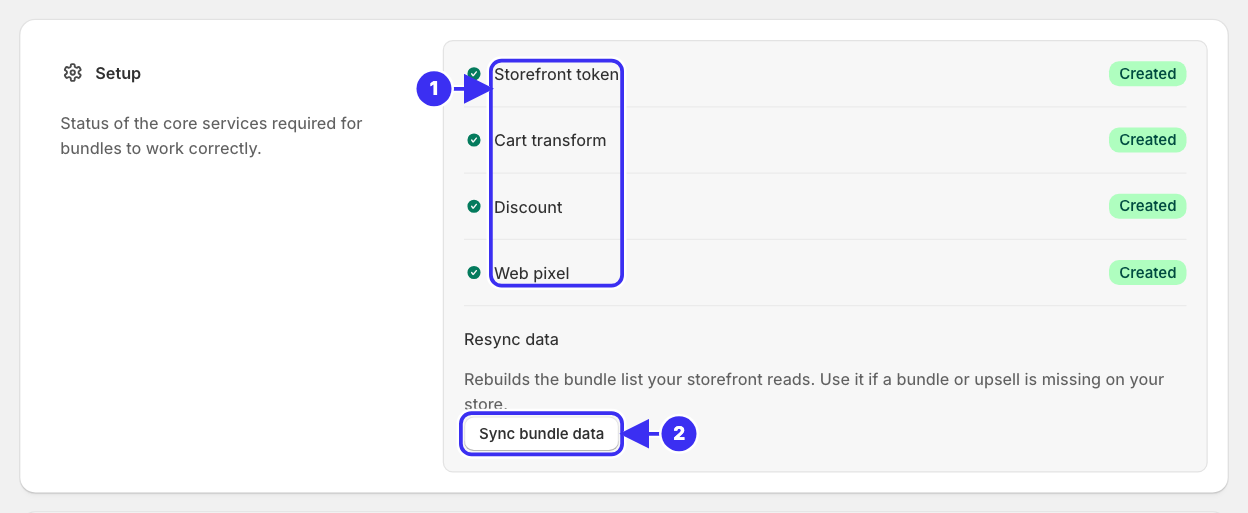
① The setup services, all Created, ② Sync bundle data
## Setup status
| Service | What it does |
| ---------------- | --------------------------------------------------- |
| Storefront token | Lets the bundle page load products |
| Cart transform | Groups the picked items into one bundle line |
| Discount | The Shopify Function that applies tiers at checkout |
| Web pixel | Records views and orders for analytics |
All four are created automatically when the app is installed. Nothing to configure.
{% hint style="danger" %}
If a service shows **Failed**, contact support from this page. Bundles may render but the failed part (discounts, analytics) will not work until it is fixed.
{% endhint %}
## Checkout compatibility
Tells the app whether your store uses Shopify's checkout or a third-party one, so bundle lines are grouped and discounted the right way. Leave it as is unless you have replaced the checkout.
## Bundle discount
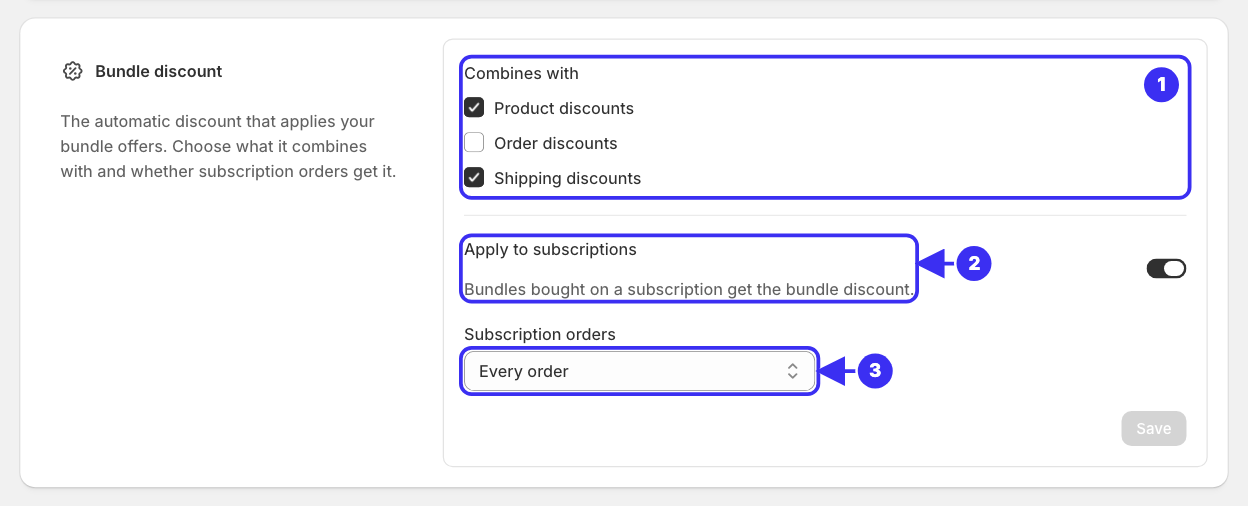
The offers of build-your-own and multi-option bundles run through one automatic Shopify discount that the app creates, **Elite Bundle Discount**. This section sets how it behaves for all of them.
| Setting | What it does |
| ---------------------- | ----------------------------------------------------------------------------------------------------------------------------------------------- |
| Combines with | Tick **Product discounts**, **Order discounts** or **Shipping discounts** to let the bundle discount apply alongside those in the same checkout |
| Apply to subscriptions | Bundles bought on a subscription get the bundle discount |
| Subscription orders | Shown when Apply to subscriptions is on: **Every order**, or **A set number of orders** |
| Number of orders | How many subscription orders get the discount. Includes the first order |
Click **Save** to apply. The values live on the Shopify discount itself, so a change made in **Shopify admin → Discounts** shows here too.
① What the discount combines with, ② Apply to subscriptions, ③ Subscription orders
{% hint style="info" %}
The first time you save a bundle with [subscriptions](/create-bundles/subscriptions.md) on, the app switches **Apply to subscriptions** on for every order. After that, your choice stands.
{% endhint %}
{% hint style="warning" %}
Keep **Apply to subscriptions** on while any bundle offers subscriptions. The storefront always shows the subscribe price with the bundle discount taken off, so with it off shoppers pay more at checkout than the price they saw. The page shows a warning when it is off.
{% endhint %}
## Developer SDK
Optional. Enables `window.eliteBundle.sdk` so a developer can build a custom bundle interface on your storefront. Enabling it asks for a developer email. See the [Developer SDK](/developer-sdk/dev-docs.md). A developer's code can run from the bundle editor's **Settings → Custom JavaScript**, on every page where a bundle renders.
## Where bundles appear
{% hint style="info" %}
This is **not** a store-wide setting. Each build-your-own bundle chooses for itself in the editor's **Template** tab: replace its product page, redirect to a dedicated page, or sit inside the product page. Multi-option bundles always use the product page.
{% endhint %}
## Support
Use **Chat now** on this page when:
* A setup service shows Failed
* The storefront does not render the bundle
* Checkout discounts are not applying
* Analytics look wrong
Typical response time is around 10 minutes during IST business hours, with a maximum wait of one business day.